> ## Documentation Index
> Fetch the complete documentation index at: https://docs.pyne.ai/llms.txt
> Use this file to discover all available pages before exploring further.
# Publishing Guides
> **💡 Goal:** Publishing a guide makes it available to end-users based on defined conditions (Targeting Rules, JavaScript function, or connection from another guide). All guides must be explicitly published to be accessible.
### How to Publish a New Guide
1. Ensure the guide is ready and accessible through at least one method: [Targeting Rules](/setup/targeting), a [JavaScript function](/setup/js-api), or linked from another guide ([Ask Step](/step-types/interactive/ask) or [Modal Step](/step-types/interactive/modal) action).
2. Click **Save** to ensure the latest changes are saved.
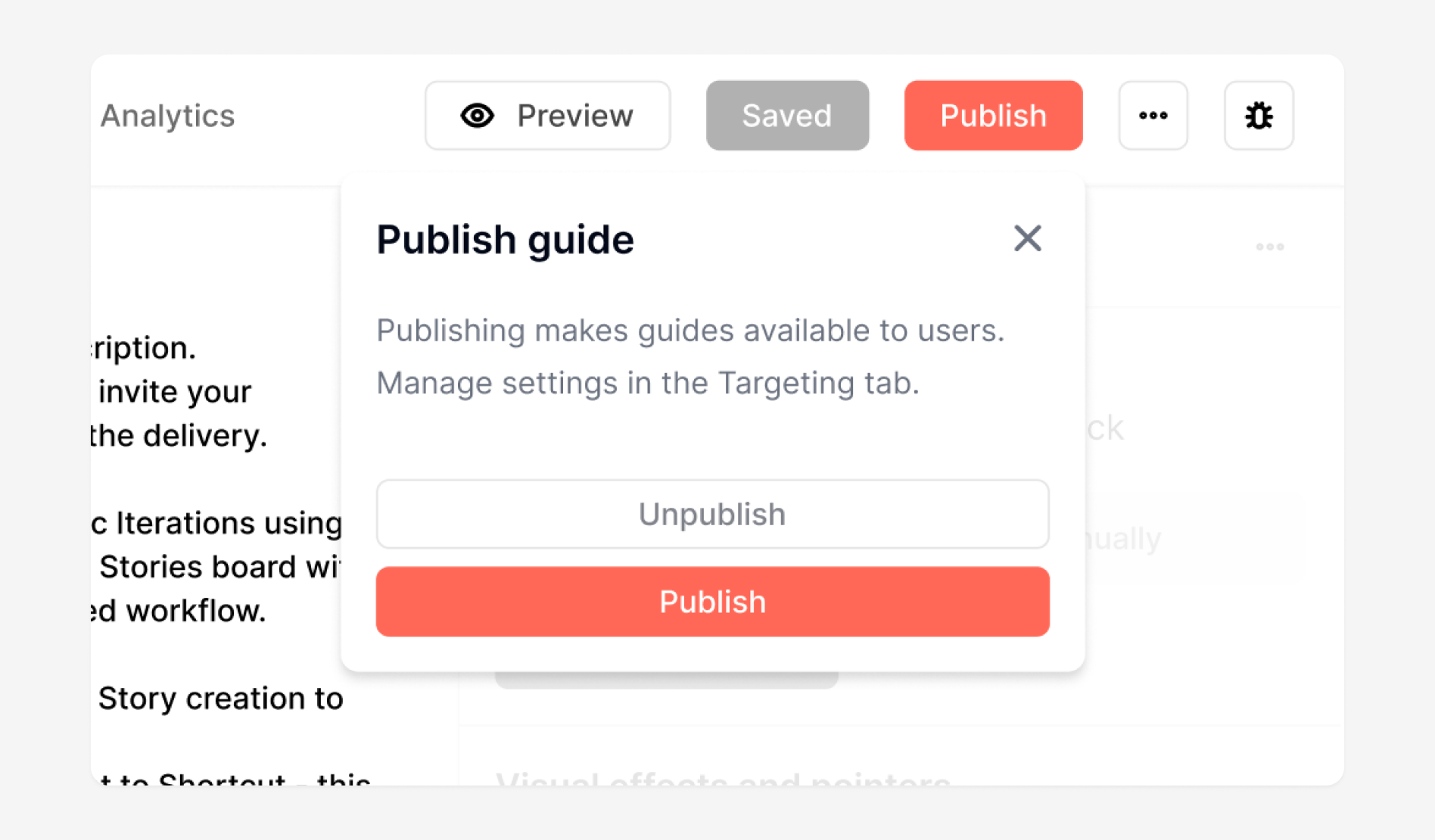
3. Click the **Publish** button (top-right corner).
4. Confirm by clicking **Yes, Publish** in the prompt.
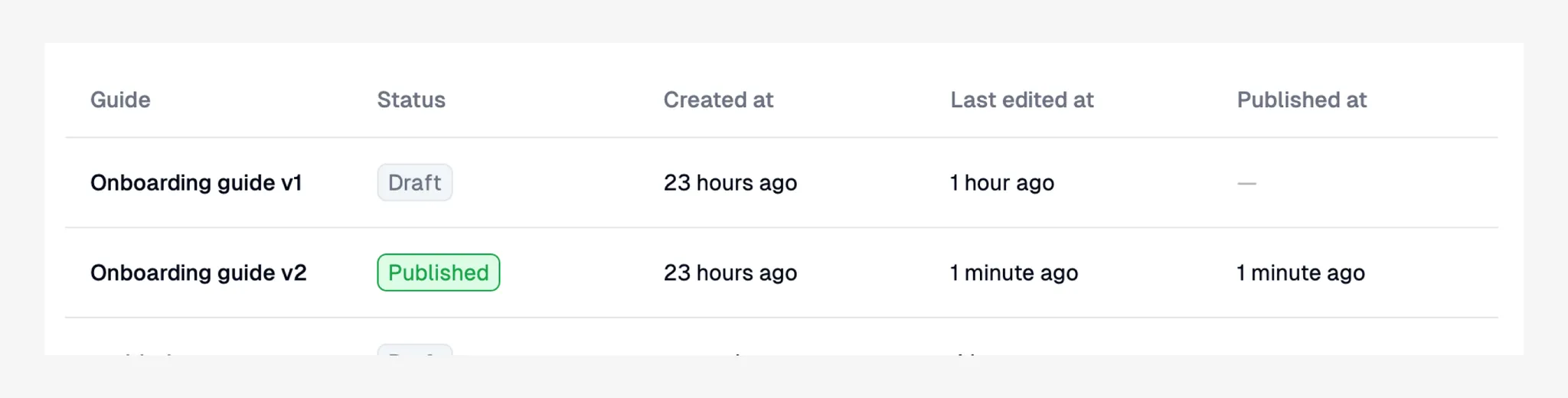
5. The guide's status changes from **Draft** to **Published**.
## The Publishing Workflow
Here's the typical process for making guides live:
 1. **Build Guide:** Create and configure your guide steps in the Pyne editor.
2. **Set Availability:** Define who sees the guide and when (see [Availability](#availability-options) below).
### Making Changes to Published Guides
To update an already published guide:
1. Make the necessary edits to the guide.
2. Click **Save**.
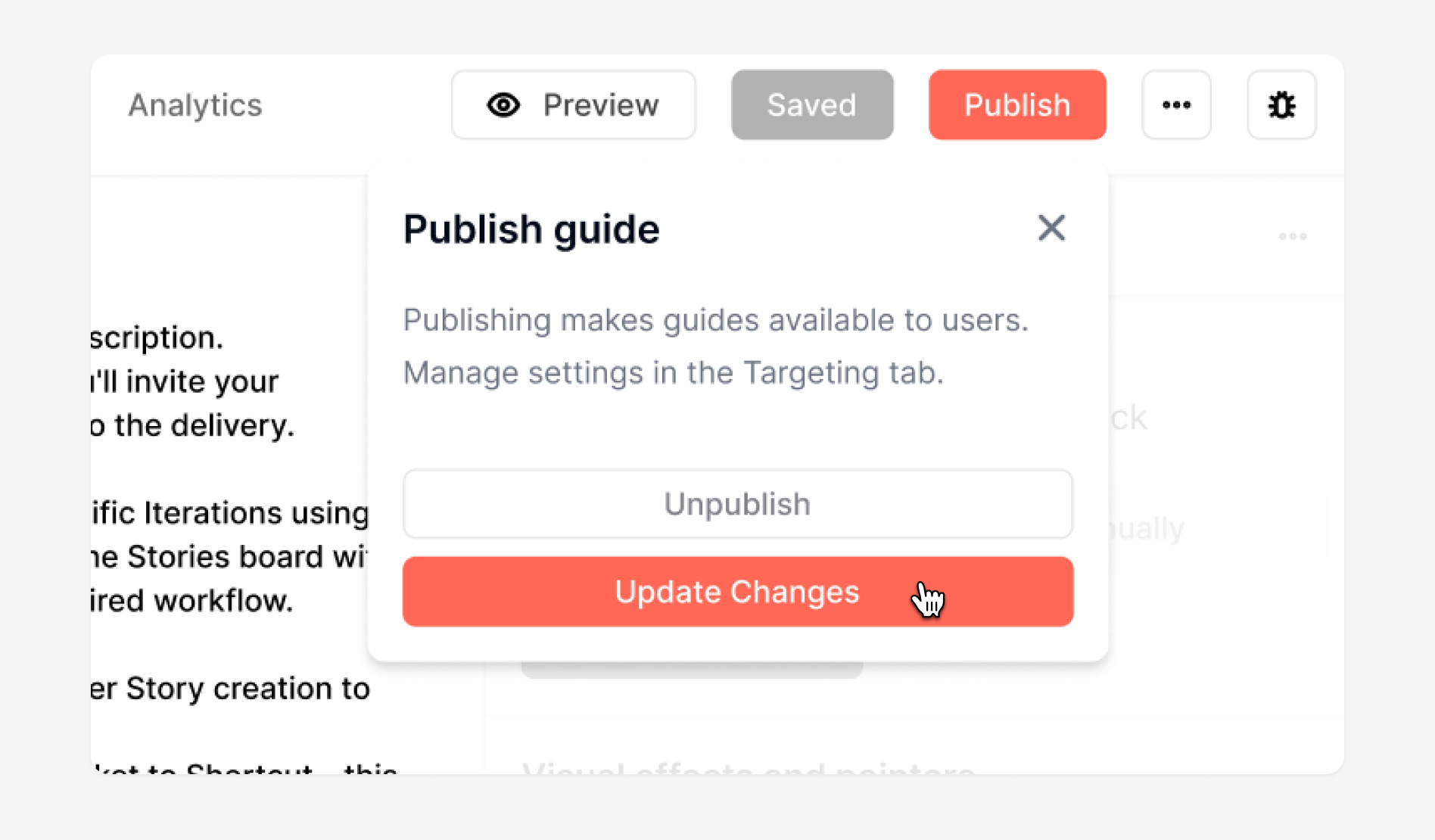
3. Click the **Publish** button again.
4. Select **Update Changes** in the confirmation prompt.
1. **Build Guide:** Create and configure your guide steps in the Pyne editor.
2. **Set Availability:** Define who sees the guide and when (see [Availability](#availability-options) below).
### Making Changes to Published Guides
To update an already published guide:
1. Make the necessary edits to the guide.
2. Click **Save**.
3. Click the **Publish** button again.
4. Select **Update Changes** in the confirmation prompt.
 ### Discarding Changes
If you want to revert unpublished edits to a Published guide, use the **Discard Changes** option from the dropdown menu next to "Update Changes".
### Draft vs. Published Status
* Use **Published** status when a guide is ready for end-users.
* Keep guides in **Draft** status during creation, editing, or testing.
### Discarding Changes
If you want to revert unpublished edits to a Published guide, use the **Discard Changes** option from the dropdown menu next to "Update Changes".
### Draft vs. Published Status
* Use **Published** status when a guide is ready for end-users.
* Keep guides in **Draft** status during creation, editing, or testing.
 ### Three Ways Guides Become Available
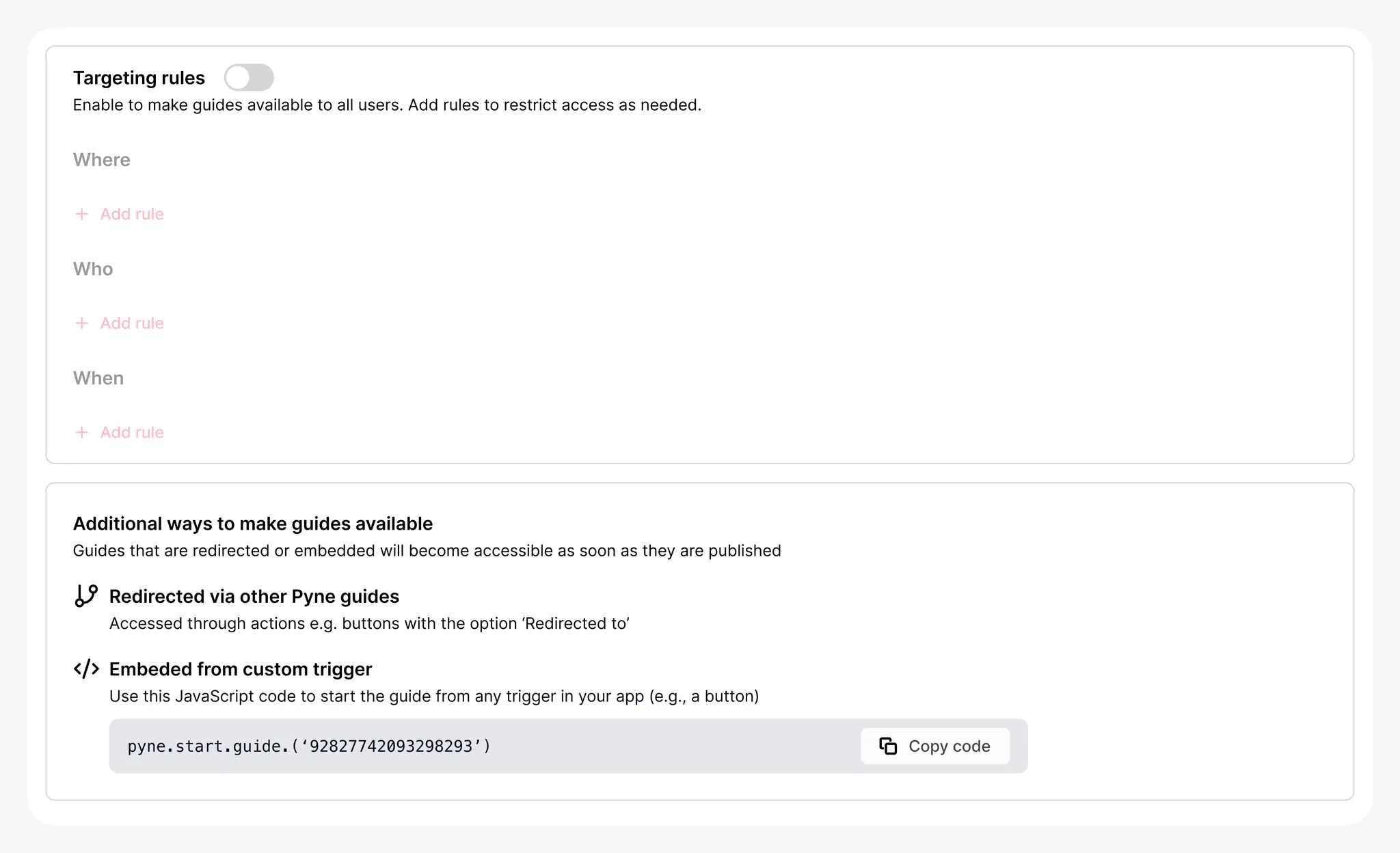
Once **Published**, a guide can be triggered or accessed via:
1. **Targeting Rules:** Appears automatically based on user attributes, page URL, etc. (Must be explicitly enabled).
2. **JavaScript Function:** Triggered programmatically via code.
3. **Connection via Another Guide:** Launched using the 'Redirect to the guide' action in an `Ask` or `Modal` step.
### Three Ways Guides Become Available
Once **Published**, a guide can be triggered or accessed via:
1. **Targeting Rules:** Appears automatically based on user attributes, page URL, etc. (Must be explicitly enabled).
2. **JavaScript Function:** Triggered programmatically via code.
3. **Connection via Another Guide:** Launched using the 'Redirect to the guide' action in an `Ask` or `Modal` step.
 ***
### Why Targeting Rules Are Initially Disabled
**Targeting Rules** for a guide are disabled by default. This prevents accidental display of unfinished guides. A guide will only appear via targeting *after* it has been **Published** *and* its **Targeting Rules** have been explicitly enabled and configured.
***
## FAQ
**What happens if I publish a guide but forget to enable and define Targeting Rules?**
If the guide is triggered by a JavaScript function or linked from another guide, it will still be available via those methods. If *no* availability method is configured (Targeting Rules disabled, no JS call, no link from another guide), the guide will be Published but inaccessible to users.
**Can I use multiple availability methods simultaneously?**
Yes. A guide can be available via enabled Targeting Rules *and* be triggerable via JavaScript or links from other guides. This offers flexibility in how users access the guide.
## Availability Options
How you make a guide available depends on its purpose and target audience:
1. **Targeting Rules:** Automatically show guides to specific user segments based on traits or events (most common).
* Go to the **Targeting** tab in the guide editor.
***
### Why Targeting Rules Are Initially Disabled
**Targeting Rules** for a guide are disabled by default. This prevents accidental display of unfinished guides. A guide will only appear via targeting *after* it has been **Published** *and* its **Targeting Rules** have been explicitly enabled and configured.
***
## FAQ
**What happens if I publish a guide but forget to enable and define Targeting Rules?**
If the guide is triggered by a JavaScript function or linked from another guide, it will still be available via those methods. If *no* availability method is configured (Targeting Rules disabled, no JS call, no link from another guide), the guide will be Published but inaccessible to users.
**Can I use multiple availability methods simultaneously?**
Yes. A guide can be available via enabled Targeting Rules *and* be triggerable via JavaScript or links from other guides. This offers flexibility in how users access the guide.
## Availability Options
How you make a guide available depends on its purpose and target audience:
1. **Targeting Rules:** Automatically show guides to specific user segments based on traits or events (most common).
* Go to the **Targeting** tab in the guide editor.