> ## Documentation Index
> Fetch the complete documentation index at: https://docs.pyne.ai/llms.txt
> Use this file to discover all available pages before exploring further.
# Configure Targeting
> Create audience rules for targeting specific users
Targeting rules allow you to control which users see a specific guide based on their attributes or behavior. This ensures guides are relevant and shown only to the intended audience.
See [Publishing Guides](/essentials/publishing) for how Targeting Rules fit into the overall guide availability process.
## How to Set Targeting
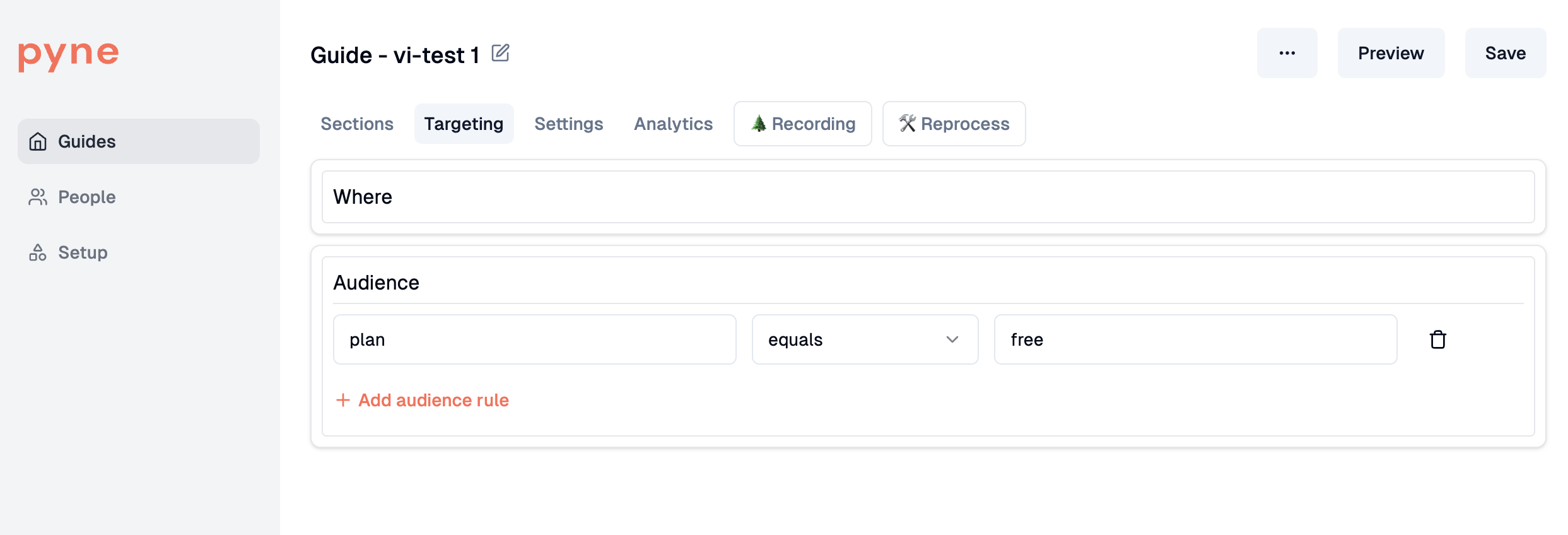
Configure guide targeting within the Pyne dashboard under the "Targeting" section for each guide.
 ### Choose Your Criteria
Select from various criteria types to define your target audience:
### Choose Your Criteria
Select from various criteria types to define your target audience:
 * The **most commonly used setup** for targeting is a combination of
* sign-up date (to e.g. only target new users)
* starting URL
* **User Traits:** Target based on properties sent via `pyne.identify` (e.g., `role`, `plan`, `createdAt`).
**Available Filters:**
* You can combine multiple filters (e.g., user attributes, URLs, Selectors) to precisely define your target audience. The easiest way to target is by URL conditions (no integration required).
* Filters support various operators (equals, contains, greater than, before/after for dates, etc.).
**Common Errors:**
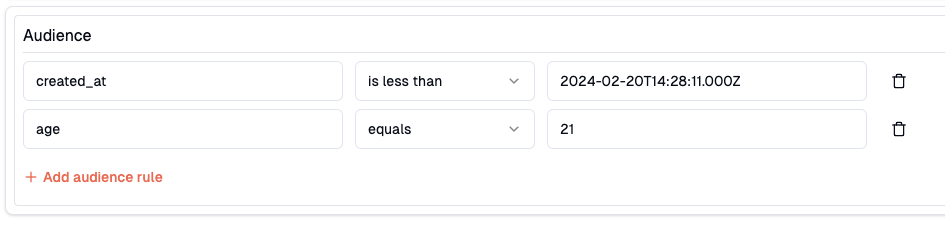
* Date/Time properties use the ISO-8601 standard (e.g., `2024-02-20T14:28:11Z`) - here errors can happen, for instance when accidentially confunding DD and MM.
* Confirm whether you've selected the correct attribute. If you select the wrong of the two CreatedAt vs. Created\_At, it might cause lots of headaches
* If you're using e.g. a "is one of" operator, just separate the entries with comata (e.g. 1,4,52,24) and without any spaces
*Example: Targeting users aged 21 with accounts created before a specific date.*
### Testing Targeting Rules
To verify your targeting rules work as expected:
1. **Enable Targeting:** Ensure the 'Targeting' toggle is enabled for the guide.
2. **Add Test Rule:** Set up a specific rule that matches a test user account (e.g., `email equals test@example.com` or `companyName equals YourTestCompany`).
3. **Save & Publish:** Click **Save**, then **Publish** the guide (or **Update Changes** if already published). See [Publishing Guides](/essentials/publishing).
4. **Verify:** Log in to your application as the test user who matches the criteria. The guide should automatically appear based on the targeting rules.
## Advanced: targeting via client-side events
### Overview
Guides can now be shown or hidden based on **custom client-side events** triggered during the session using the Pyne SDK. This allows you to control guide behavior based on real user actions—no backend integration needed.
### How to Emit an Event
Use the Pyne SDK method:
```
pyne.trackEvent('event_name');
```
Examples:
```
pyne.trackEvent('create_project_clicked');
pyne.trackEvent('dismissed_pricing_modal');
```
* Events are **client-only**
* They exist **only for the current session**
* **Not sent to pyne.ai servers**
### How to Target with Events
In the **Guide Targeting UI**, add a condition like:
* `event` `triggered` `create_project_clicked`
This will display the guide **only if** that event has been triggered during the user’s session.
You can combine event conditions with others, such as:
* `company.createdAt` `is greater than` `2024-12-10`
* `Current URL` `ends with` `/workspace`
*
* The **most commonly used setup** for targeting is a combination of
* sign-up date (to e.g. only target new users)
* starting URL
* **User Traits:** Target based on properties sent via `pyne.identify` (e.g., `role`, `plan`, `createdAt`).
**Available Filters:**
* You can combine multiple filters (e.g., user attributes, URLs, Selectors) to precisely define your target audience. The easiest way to target is by URL conditions (no integration required).
* Filters support various operators (equals, contains, greater than, before/after for dates, etc.).
**Common Errors:**
* Date/Time properties use the ISO-8601 standard (e.g., `2024-02-20T14:28:11Z`) - here errors can happen, for instance when accidentially confunding DD and MM.
* Confirm whether you've selected the correct attribute. If you select the wrong of the two CreatedAt vs. Created\_At, it might cause lots of headaches
* If you're using e.g. a "is one of" operator, just separate the entries with comata (e.g. 1,4,52,24) and without any spaces
*Example: Targeting users aged 21 with accounts created before a specific date.*
### Testing Targeting Rules
To verify your targeting rules work as expected:
1. **Enable Targeting:** Ensure the 'Targeting' toggle is enabled for the guide.
2. **Add Test Rule:** Set up a specific rule that matches a test user account (e.g., `email equals test@example.com` or `companyName equals YourTestCompany`).
3. **Save & Publish:** Click **Save**, then **Publish** the guide (or **Update Changes** if already published). See [Publishing Guides](/essentials/publishing).
4. **Verify:** Log in to your application as the test user who matches the criteria. The guide should automatically appear based on the targeting rules.
## Advanced: targeting via client-side events
### Overview
Guides can now be shown or hidden based on **custom client-side events** triggered during the session using the Pyne SDK. This allows you to control guide behavior based on real user actions—no backend integration needed.
### How to Emit an Event
Use the Pyne SDK method:
```
pyne.trackEvent('event_name');
```
Examples:
```
pyne.trackEvent('create_project_clicked');
pyne.trackEvent('dismissed_pricing_modal');
```
* Events are **client-only**
* They exist **only for the current session**
* **Not sent to pyne.ai servers**
### How to Target with Events
In the **Guide Targeting UI**, add a condition like:
* `event` `triggered` `create_project_clicked`
This will display the guide **only if** that event has been triggered during the user’s session.
You can combine event conditions with others, such as:
* `company.createdAt` `is greater than` `2024-12-10`
* `Current URL` `ends with` `/workspace`
*