> ## Documentation Index
> Fetch the complete documentation index at: https://docs.pyne.ai/llms.txt
> Use this file to discover all available pages before exploring further.
# Connect User Data
> Integrating user data for targeting in Pyne
To target guides effectively using [Targeting Rules](/setup/targeting), you need to send user data (attributes or traits) to Pyne. This allows you to define audiences based on user characteristics.
We can help you identify the most useful user attributes during your
onboarding/kickoff call.
There are two main ways to connect user data:
## Option 1: Segment Integration (Recommended)
If you use Segment, Pyne offers a custom destination.
* **Setup:** Contact the Pyne team to enable the destination for your Segment workspace.
* **Functionality:** Pyne automatically receives user traits identified via Segment, making them available for targeting.
* **Effort:** Minimal setup required on your end (approx. 15 min).
## Option 2: JavaScript Integration (`pyne.identify`)
If you don't use Segment, you can send user data directly using the `pyne.identify` JavaScript function.
**Basic Usage:**
Call `pyne.identify` when a user logs in or when their relevant attributes are known. Provide a unique User ID and an object containing the user's traits.
```javascript theme={null}
// Identify the user and their properties
pyne(
"identify",
currentUser.id, // Unique User ID (string or number)
{
// User Properties (object)
name: currentUser.name,
email: currentUser.email,
created_at: currentUser.created_at, // Use ISO-8601 format if possible
customer_plan: "trial",
user_role: "admin",
// Add any other relevant traits
}
);
```
* Call `identify` once per page load after the user is authenticated. It's
safe to call multiple times. \* User traits sent via `identify` are merged with
any existing profile data in Pyne. \* This step is not required for anonymous
(unidentified) visitors.
**Ending a Session (Logout):**
When a user logs out, call `identify` with `null` to clear the identified user session:
```javascript theme={null}
pyne("identify", null);
```
**Removing a Specific Trait:**
To remove or unset a specific trait, send `undefined` as its value:
```javascript theme={null}
pyne("identify", currentUser.id, {
customer_plan: undefined,
});
```
## Verify Integration
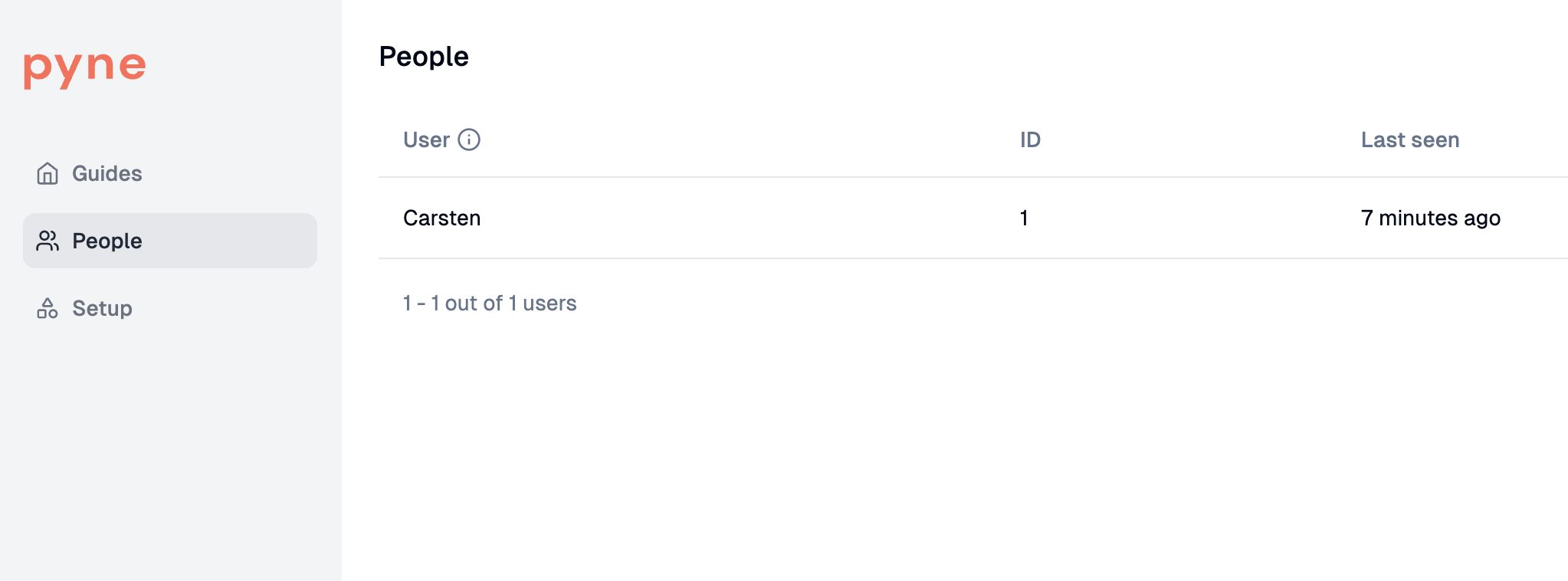
After setting up either integration method, verify that user data is appearing correctly in the Pyne Dashboard:
1. Navigate to **People**.
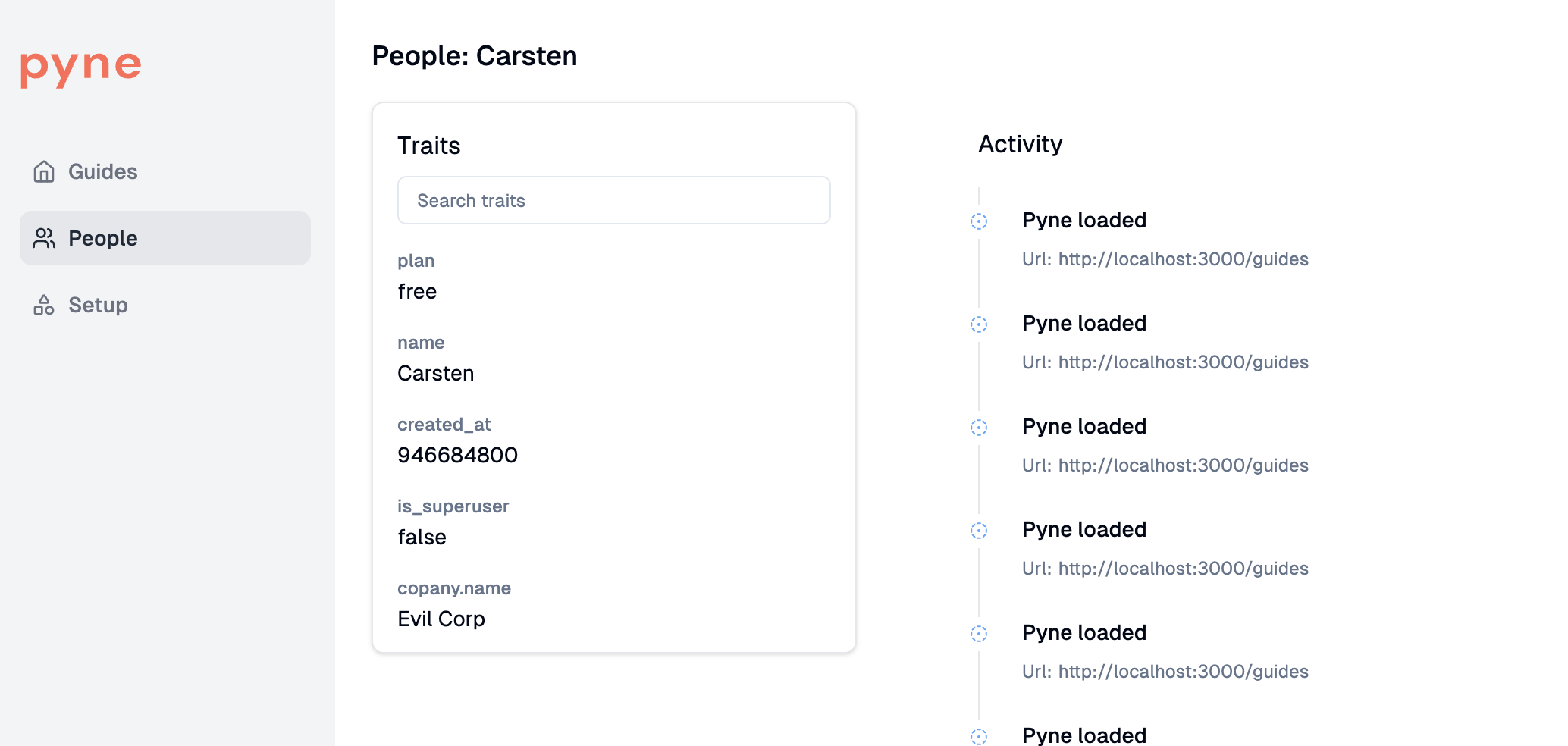
2. Check if users are listed and their associated traits are visible when selecting a user.
You can view these traits on the **People** page in the Pyne dashboard:
 Clicking on a user shows their specific traits:
 ## Identifying Anonymous Users