> ## Documentation Index
> Fetch the complete documentation index at: https://docs.pyne.ai/llms.txt
> Use this file to discover all available pages before exploring further.
# Ask
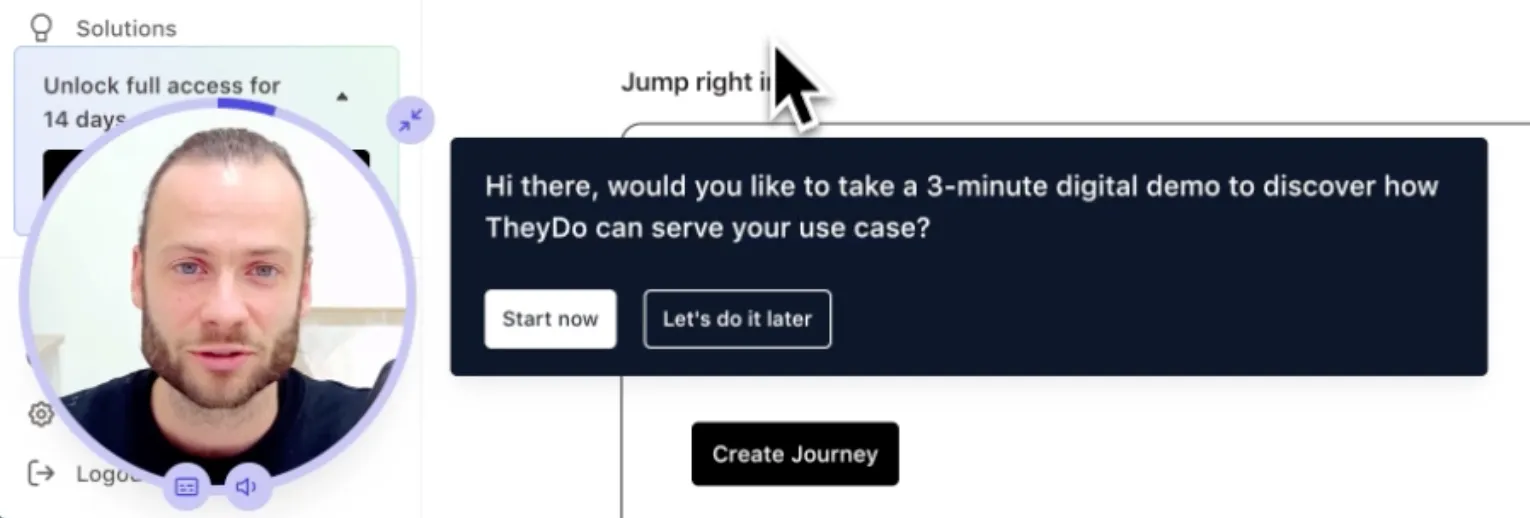
The `Ask` step presents the user with a question and multiple-choice answers (actions).
**Key Characteristics:**
* **Avatar Behaviour:** The avatar pauses until the user selects one of the provided answer options (actions).
* **Progression:** The guide proceeds based on the action configured for the selected answer (e.g., proceed to next step, redirect, pause guide).
* **Common Use Cases:**
* Inviting the user to start a tour.
* Asking questions mid-guide to collect user data or feedback.
* Providing branching logic (e.g., "What do you want to learn about?").
* Linking to external resources (Knowledge Center, booking links).
* Connecting different guides together.
*Example: Starting the guide using Question in TheyDo (actions: first, Pause the Guide, then Proceed to Next)*
***
### Setup & Styling
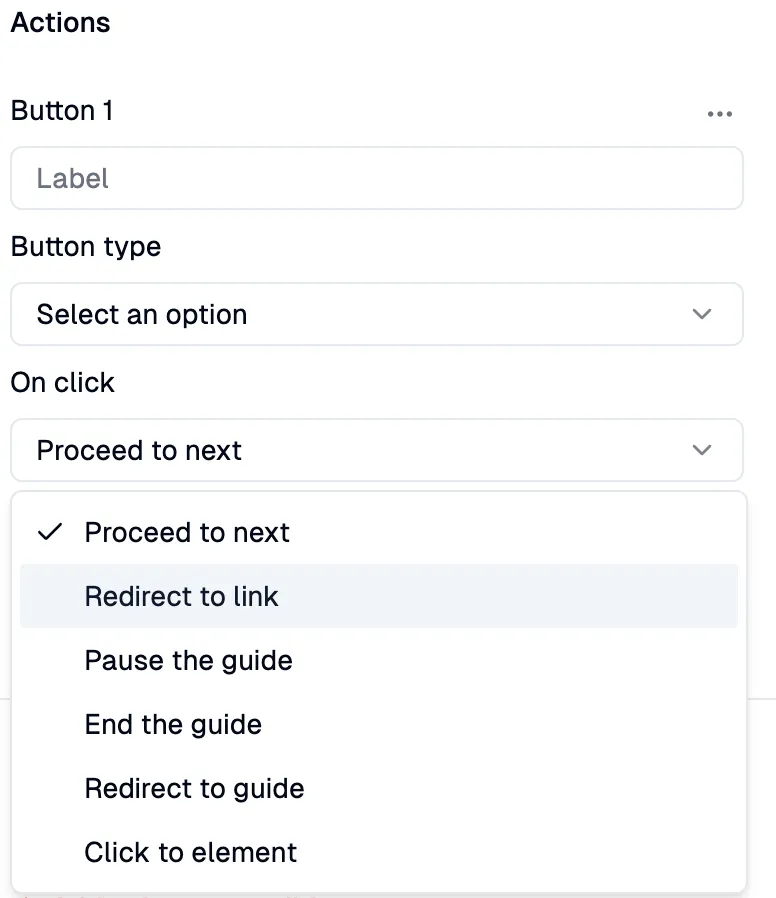
The `Ask` step is configured in the **right sidebar**. First, specify the question text. Then, add actions (answer options) and configure their behavior.
### Step Configuration
Configure the `Ask` step using the right sidebar:
 **Button Type:**
You can set the **Button type** for each action as **primary** (white) or **secondary** (dark with white border). Use the primary style to visually emphasize the desired or most common outcome.
**Button Type:**
You can set the **Button type** for each action as **primary** (white) or **secondary** (dark with white border). Use the primary style to visually emphasize the desired or most common outcome.
 **Available Actions (Behaviours):**
There are **6 actions** that can be triggered when a user clicks an answer option:
1. **Proceed to next**
The avatar continues to the next step in the current guide.
2. **Redirect to link**
The user is redirected to an external URL (e.g., Calendly, Knowledge Base article).
*Configuration:* Specify the URL and whether it opens in the same tab, new tab, or new window.
> **💡 URL format:** Use a standard URL, e.g., `https://pyne.ai/`
3. **Pause the guide**
The avatar minimizes. The user can resume the guide later by clicking the minimized avatar.
4. **End the guide**
The avatar is completely dismissed. The user cannot easily resume the guide.
5. **Redirect to the guide**
A different, specified guide is started.
*Configuration:* Connect guides using the target **Guide ID**.
> **💡 Finding the Guide ID:** The ID is the alphanumeric string in the guide's
> URL after `/guides/`. For `https://dashboard.pyne.ai/guides/ce3eba58-37d1-4bb6-962d-c08955a0a3fb`,
> the ID is `ce3eba58-37d1-4bb6-962d-c08955a0a3fb`.
6. **Click to element**
The avatar simulates a click on a specified page element. No user action is required after selecting the answer.
**Available Actions (Behaviours):**
There are **6 actions** that can be triggered when a user clicks an answer option:
1. **Proceed to next**
The avatar continues to the next step in the current guide.
2. **Redirect to link**
The user is redirected to an external URL (e.g., Calendly, Knowledge Base article).
*Configuration:* Specify the URL and whether it opens in the same tab, new tab, or new window.
> **💡 URL format:** Use a standard URL, e.g., `https://pyne.ai/`
3. **Pause the guide**
The avatar minimizes. The user can resume the guide later by clicking the minimized avatar.
4. **End the guide**
The avatar is completely dismissed. The user cannot easily resume the guide.
5. **Redirect to the guide**
A different, specified guide is started.
*Configuration:* Connect guides using the target **Guide ID**.
> **💡 Finding the Guide ID:** The ID is the alphanumeric string in the guide's
> URL after `/guides/`. For `https://dashboard.pyne.ai/guides/ce3eba58-37d1-4bb6-962d-c08955a0a3fb`,
> the ID is `ce3eba58-37d1-4bb6-962d-c08955a0a3fb`.
6. **Click to element**
The avatar simulates a click on a specified page element. No user action is required after selecting the answer.