> ## Documentation Index
> Fetch the complete documentation index at: https://docs.pyne.ai/llms.txt
> Use this file to discover all available pages before exploring further.
# Media Card
Use the `Media Card` step to display additional visual content (images, GIFs, or videos) alongside the avatar's speech bubble.
**Key Characteristics:**
* **Purpose:** Enhance explanations or demonstrations with supporting media.
* **Appearance:** Appears as a card attached to the main avatar bubble.
* **Common Use Cases:** Showing screenshots, short video demonstrations, or illustrative GIFs without interrupting the main guide flow with a full modal.
*Example Use Case: For a first-time user with no sample data, you could use a Media Card to show a screenshot of what a populated dashboard looks like.*
*Example: Media Card Step in Salesforce*
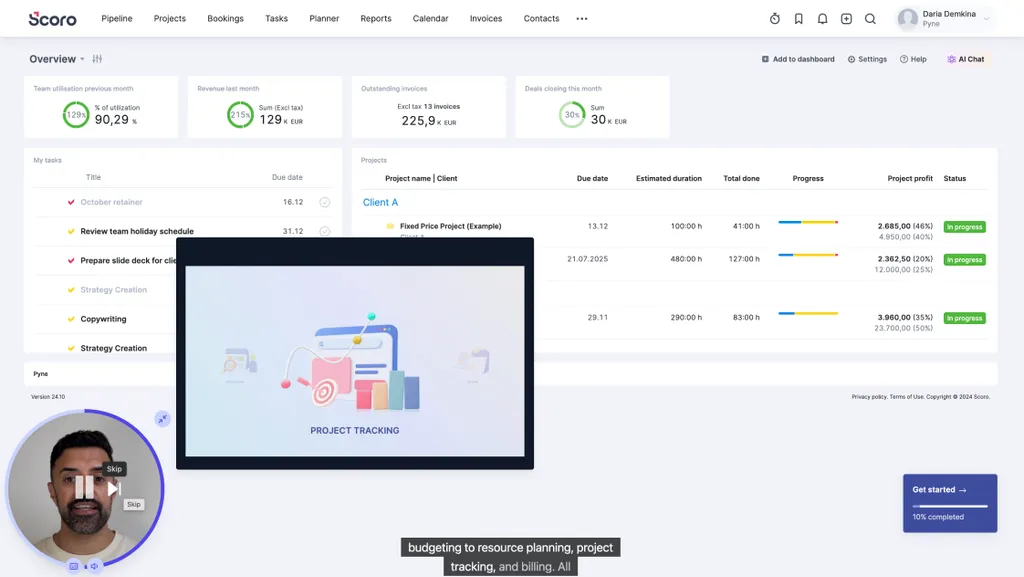 *Example Video: Media Card in Scoro is used to show how to perform an action*