> ## Documentation Index
> Fetch the complete documentation index at: https://docs.pyne.ai/llms.txt
> Use this file to discover all available pages before exploring further.
# User Click
Use the `User Click` step (also known as User Action) to **guide** the user through your product and encourage them to perform a specific action.
**Key Characteristics:**
* **Avatar Behaviour:** Once the step is executed, the avatar **pauses and waits** for the user to complete the required action (e.g., clicking a button).
* **Progression:** The guide proceeds only after the user performs the action.
* **Common Use Cases:** Guiding a user to create a new project or explore different sections of your product.
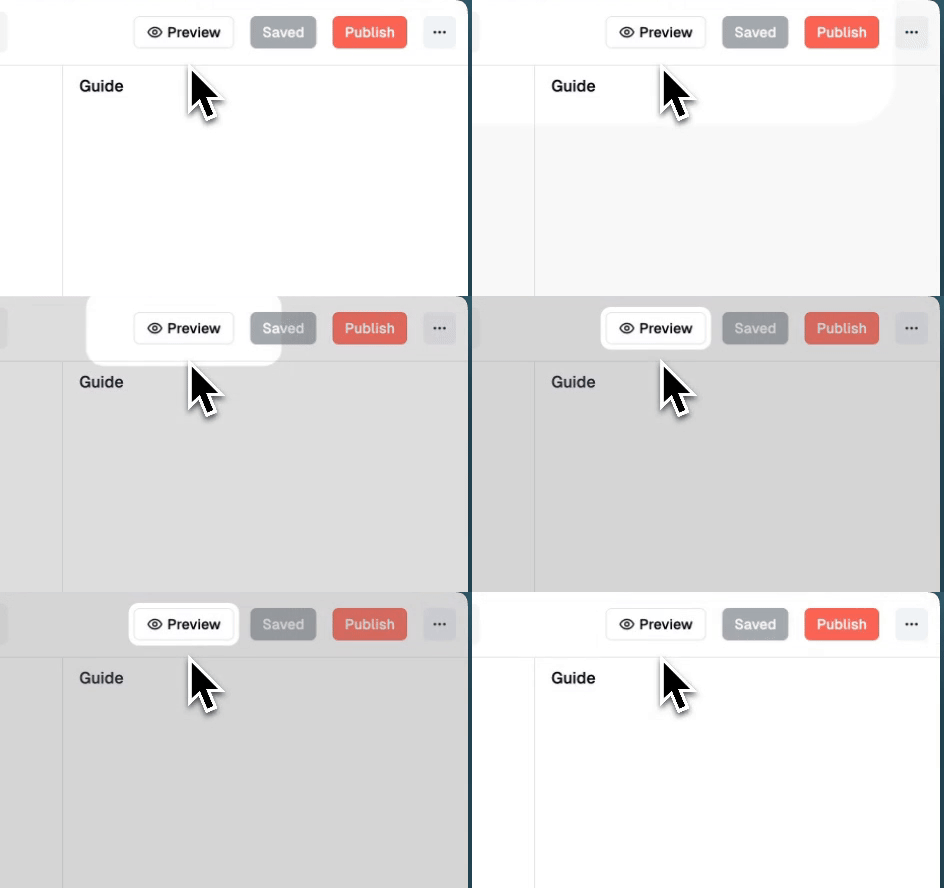
*Example: User Action in Scoro to guide the user through the platform (styling: Pulsing Border, Click)*
***
### Styling Options
`User Click` steps involve pointer actions which can have different animations, depending on the design of your product, storyline and your needs. The design is set up in the ***right side-bar of the step. →***
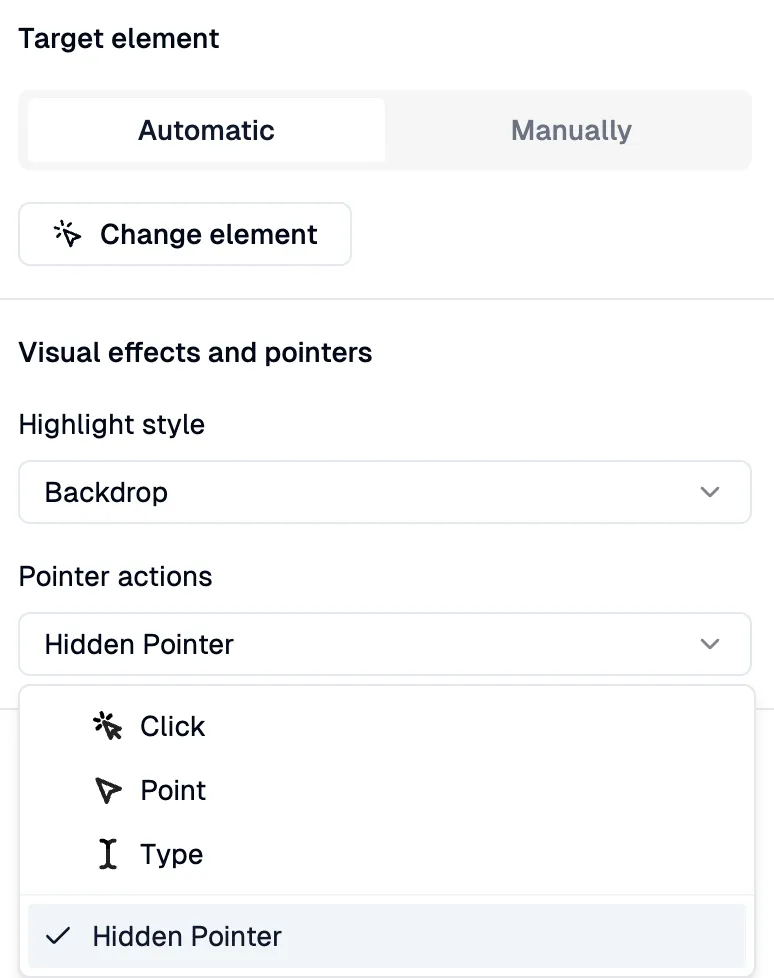 There are 4 designs for **Pointer Action** animations:
-
Click
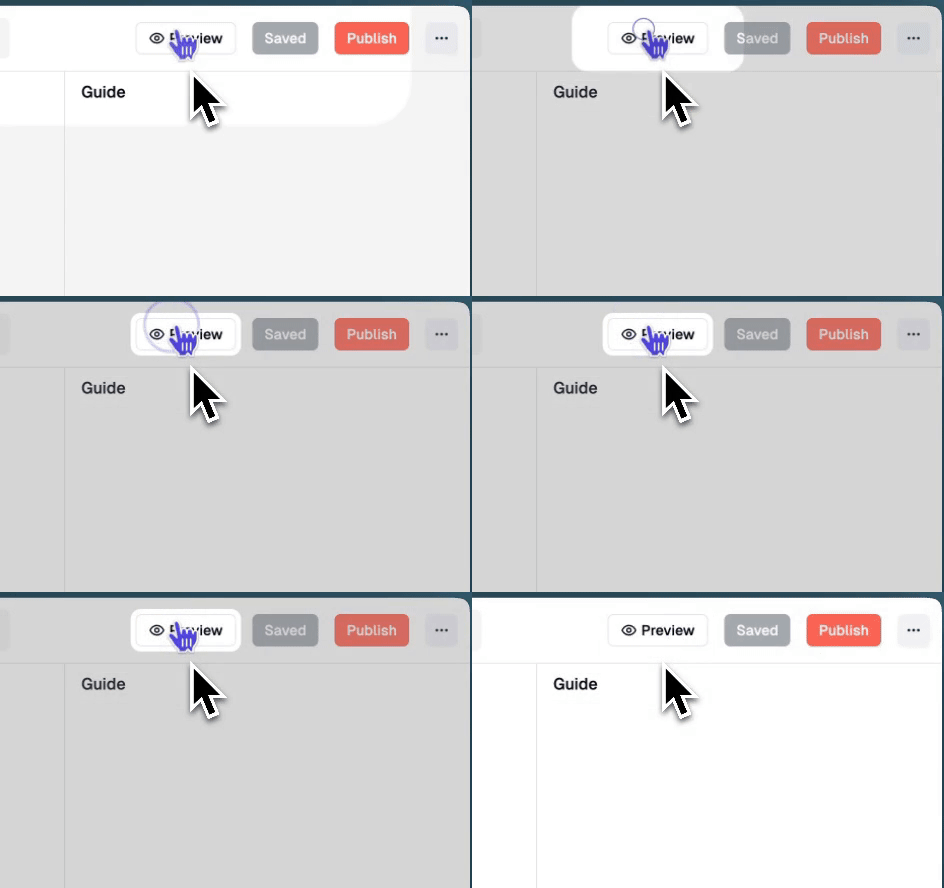 Shows an animated cursor performing a click action on the target element.
-
Type
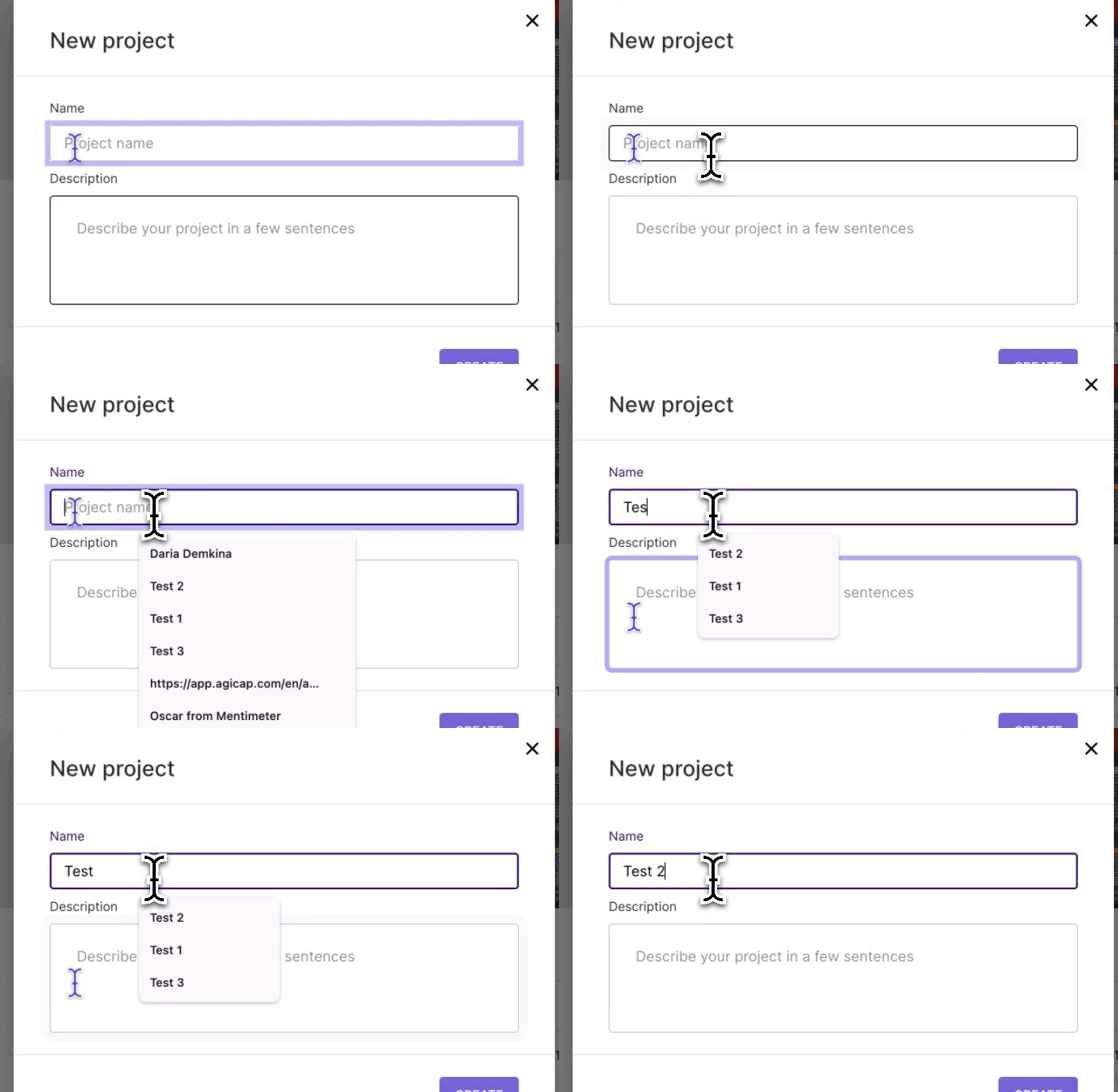 Displays an animated cursor with a blinking caret, simulating typing within
the target field.
Displays an animated cursor with a blinking caret, simulating typing within
the target field.
-
Point
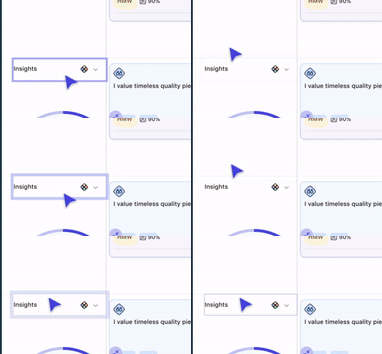 An animated cursor points directly at the target element without clicking.
-
Hidden Pointer
 No pointer animation is shown; the element is simply highlighted or targeted
for the action.
No pointer animation is shown; the element is simply highlighted or targeted
for the action.