> ## Documentation Index
> Fetch the complete documentation index at: https://docs.pyne.ai/llms.txt
> Use this file to discover all available pages before exploring further.
# Page Change
Use the `Page Change` step to manage transitions between different pages within a guide or multi-page flow.
**Key Characteristics:**
* **Purpose:** Defines the expected URL for guide steps and handles user navigation across different pages.
* **Functionality:**
* Ensures the guide appears on the correct page.
* Helps detect when users navigate off the intended path.
* Can automatically redirect users to the correct page.
* Sets the base URL for On-Track Conditions for subsequent steps.
* **Placement:** Recommended at the beginning of a guide and immediately after any user action that triggers a page navigation.
## Why Use It?
Since Pyne guides overlay your application, users might navigate away from the guide's intended path. `Page Change` steps allow Pyne to recognize the correct page for the guide and detect when the user has navigated elsewhere, enabling mechanisms like the "Wander-off" message.
## When to Use It?
Use `Page Change` steps in both single-page and multi-page guides:
* **At the beginning of every guide:** Establishes the initial page URL.
* **After any step that causes navigation:** Ensures the guide follows the user to the new page correctly.
***
## How it Works
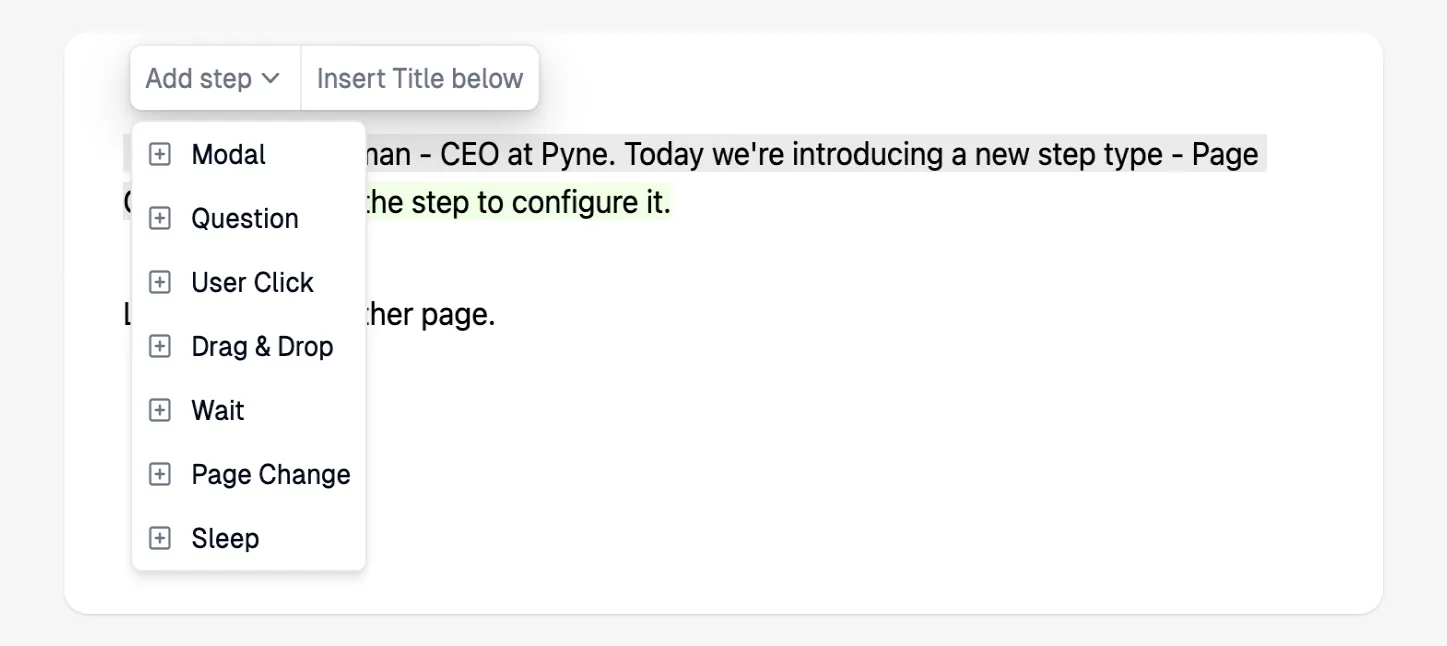
1. Add the `Page Change` step from the `Add Step` toolbar menu.
 2. Configure the step in the right sidebar:
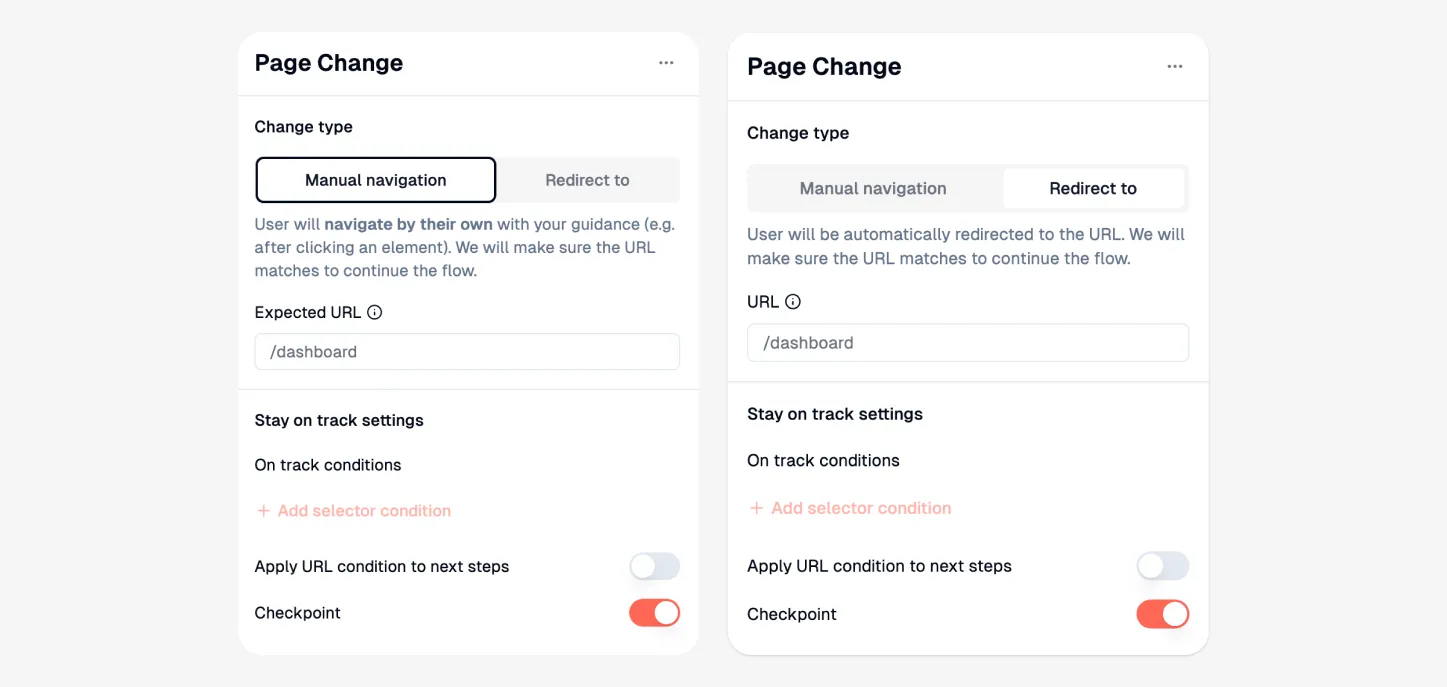 * **Page Change Type:**
* **Manual Navigation:** Choose this if the user navigates themselves (e.g., by clicking an element guided by a previous step). Pyne verifies the user lands on the expected URL.
* **Redirect to:** Choose this to automatically redirect the user to the specified URL. (Common when linking guides together).
> **ℹ️ Info:** The `Redirect to` type replaces the older, separate 'Redirect to' step functionality.
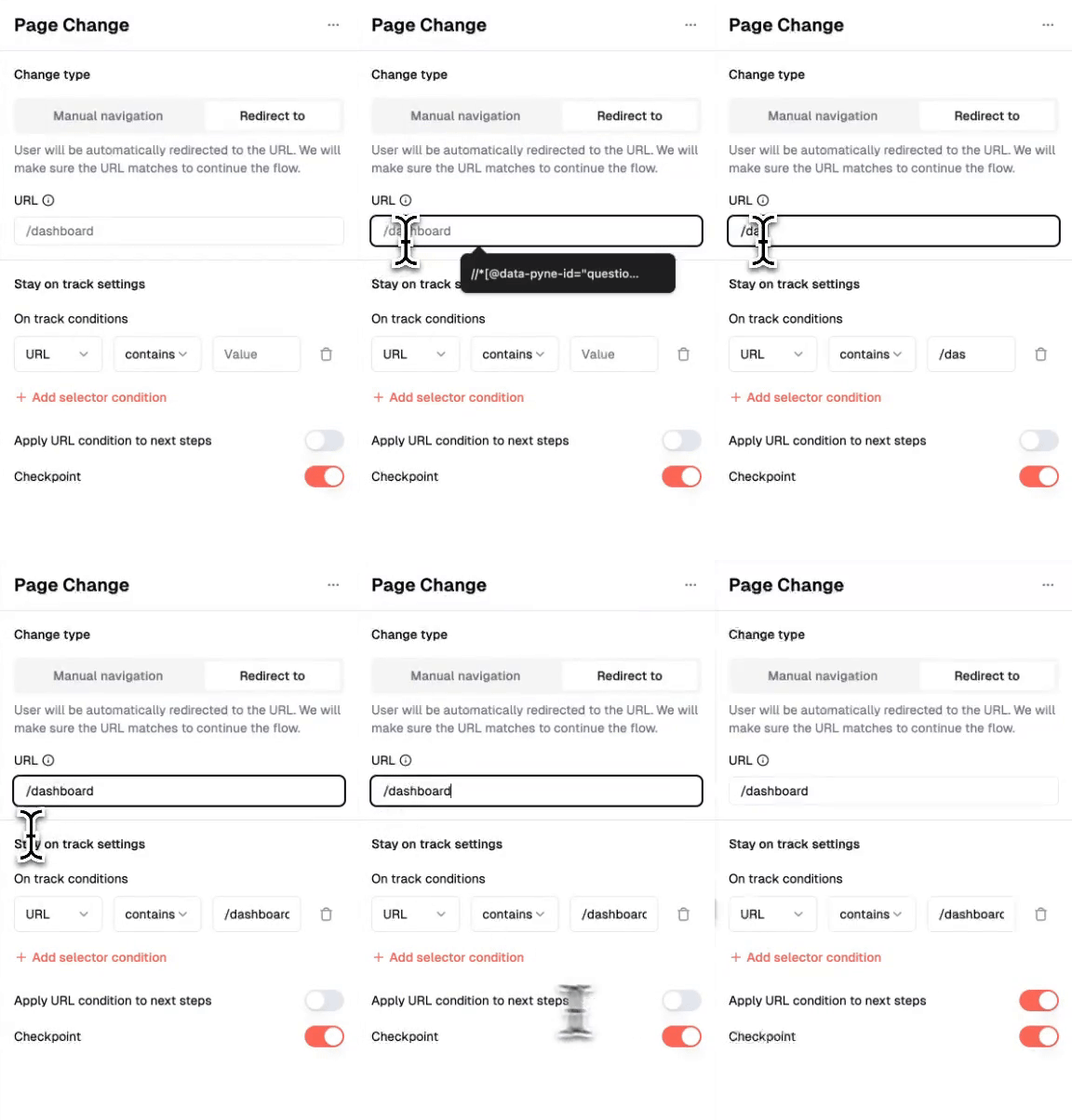
* **Define the URL:** Specify the target URL path (see [How to add the correct URL?](#how-to-add-the-correct-url)). This sets the expected page for the following steps.
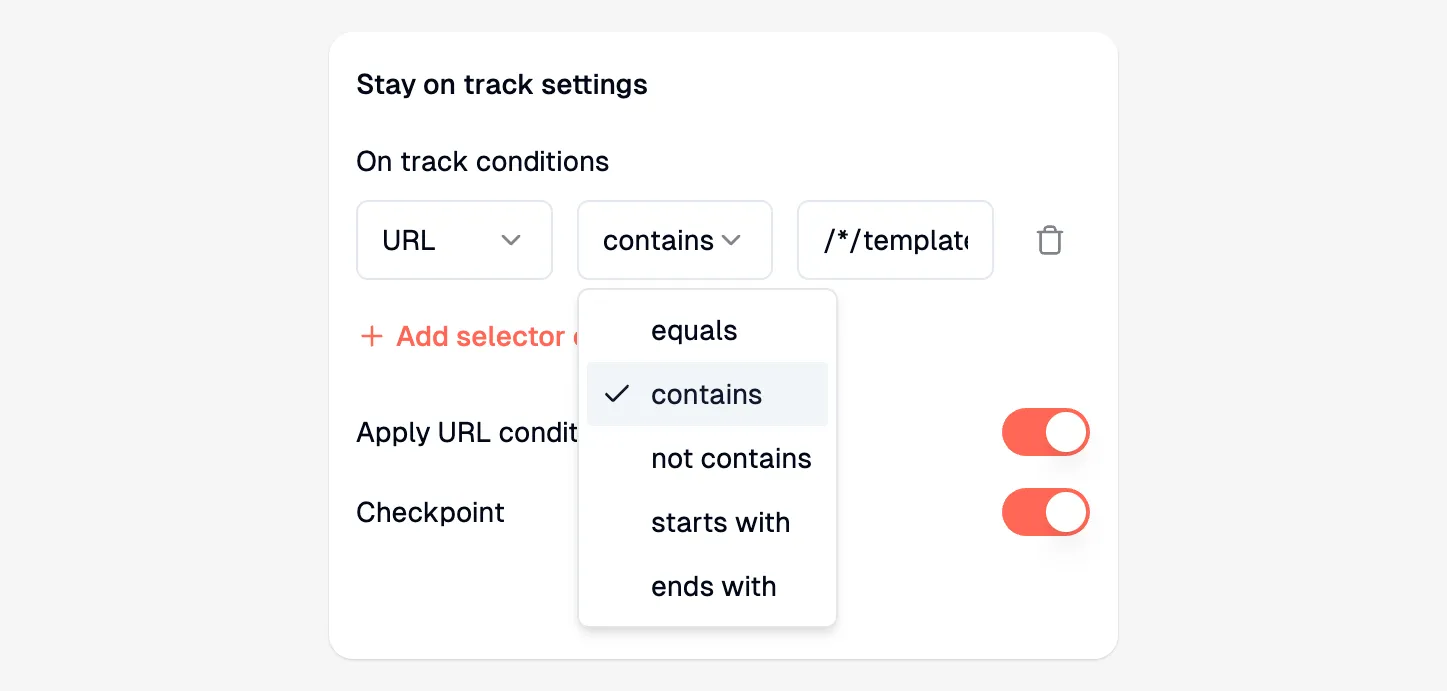
* **On-track Conditions:** The URL condition is automatically populated based on the defined URL. Refine if necessary (see [What are on-track conditions?](#what-are-on-track-conditions)).
* **Apply URL condition to next steps:** Toggle this on to apply the same URL condition to subsequent steps automatically. You can still override the condition on individual steps later if needed (e.g., for modals).
* **Page Change Type:**
* **Manual Navigation:** Choose this if the user navigates themselves (e.g., by clicking an element guided by a previous step). Pyne verifies the user lands on the expected URL.
* **Redirect to:** Choose this to automatically redirect the user to the specified URL. (Common when linking guides together).
> **ℹ️ Info:** The `Redirect to` type replaces the older, separate 'Redirect to' step functionality.
* **Define the URL:** Specify the target URL path (see [How to add the correct URL?](#how-to-add-the-correct-url)). This sets the expected page for the following steps.
* **On-track Conditions:** The URL condition is automatically populated based on the defined URL. Refine if necessary (see [What are on-track conditions?](#what-are-on-track-conditions)).
* **Apply URL condition to next steps:** Toggle this on to apply the same URL condition to subsequent steps automatically. You can still override the condition on individual steps later if needed (e.g., for modals).
 ***
## How to add the correct URL?
Enter the URL path *starting from the first slash (`/`)*. Do not include the domain.
* **Example:** For `https://www.example.com/dashboard/settings`, enter `/dashboard/settings`.
### Handling Dynamic URLs
A **dynamic URL** changes based on user-specific details (e.g., user IDs, session IDs). Examples:
* `https://example.com/user/12345/profile`
* `https://example.com/project/abc/settings`
To handle these, replace the dynamic part(s) with a wildcard (`*`).
* **Example:** For `https://www.example.com/dashboard/user_xyz987/tasks`, enter `/dashboard/*/tasks`.
***
## What are on-track conditions?
**On-track conditions** are rules ensuring users are on the correct path (correct page, expected elements visible) before a step executes or progress is saved.
**Benefits:**
* **Validates Location:** Confirms the guide runs on the intended page via URL matching.
* **Prevents Errors:** Detects when users navigate away, triggering fallbacks (e.g., 'Wander-off' message).
* **Enables Checkpoints:** Ensures progress is saved only at valid points in the flow.
***
## How to add the correct URL?
Enter the URL path *starting from the first slash (`/`)*. Do not include the domain.
* **Example:** For `https://www.example.com/dashboard/settings`, enter `/dashboard/settings`.
### Handling Dynamic URLs
A **dynamic URL** changes based on user-specific details (e.g., user IDs, session IDs). Examples:
* `https://example.com/user/12345/profile`
* `https://example.com/project/abc/settings`
To handle these, replace the dynamic part(s) with a wildcard (`*`).
* **Example:** For `https://www.example.com/dashboard/user_xyz987/tasks`, enter `/dashboard/*/tasks`.
***
## What are on-track conditions?
**On-track conditions** are rules ensuring users are on the correct path (correct page, expected elements visible) before a step executes or progress is saved.
**Benefits:**
* **Validates Location:** Confirms the guide runs on the intended page via URL matching.
* **Prevents Errors:** Detects when users navigate away, triggering fallbacks (e.g., 'Wander-off' message).
* **Enables Checkpoints:** Ensures progress is saved only at valid points in the flow.
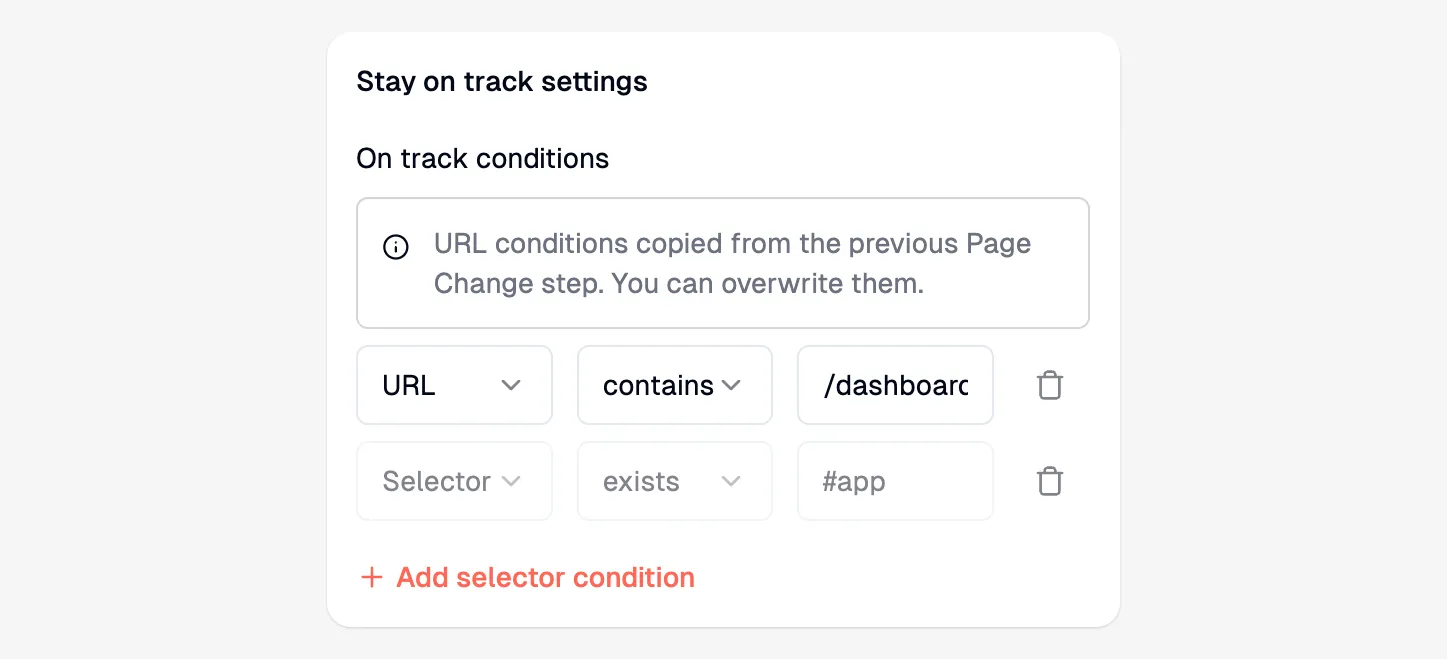 ### Refining URL On-Track Conditions
Review and adjust the automatically generated URL condition if needed:
* **Dynamic URLs:** Ensure wildcards (`*`) are used correctly.
* **Modals/Side Panels:** Steps interacting with overlays might require different or no URL conditions.
* **Condition Type:** Choose the best match type (`contains`, `equals`, `startsWith`, etc.).
### Refining URL On-Track Conditions
Review and adjust the automatically generated URL condition if needed:
* **Dynamic URLs:** Ensure wildcards (`*`) are used correctly.
* **Modals/Side Panels:** Steps interacting with overlays might require different or no URL conditions.
* **Condition Type:** Choose the best match type (`contains`, `equals`, `startsWith`, etc.).
 ***
## FAQ
### Can I still use the old 'Redirect to' step?
The separate 'Redirect to' step is deprecated. Use the `Page Change` step with the 'Redirect to' type selected to achieve the same functionality. Older guides using the old step have been automatically updated.
### How does Page Change interact with Targeting Rules?
`Page Change` steps work alongside targeting rules. If a guide's 'Where' targeting rule already matches the URL defined in a 'Redirect to' Page Change step, the page will not unnecessarily reload.
### Can I add Selector conditions to a Page Change step?
Yes, you can add additional **Selector** on-track conditions to a `Page Change` step (e.g., require an element to exist). However, only the **URL** condition set in the `Page Change` step is automatically applied to subsequent steps when the "Apply URL condition to next steps" toggle is enabled.
***
***
## FAQ
### Can I still use the old 'Redirect to' step?
The separate 'Redirect to' step is deprecated. Use the `Page Change` step with the 'Redirect to' type selected to achieve the same functionality. Older guides using the old step have been automatically updated.
### How does Page Change interact with Targeting Rules?
`Page Change` steps work alongside targeting rules. If a guide's 'Where' targeting rule already matches the URL defined in a 'Redirect to' Page Change step, the page will not unnecessarily reload.
### Can I add Selector conditions to a Page Change step?
Yes, you can add additional **Selector** on-track conditions to a `Page Change` step (e.g., require an element to exist). However, only the **URL** condition set in the `Page Change` step is automatically applied to subsequent steps when the "Apply URL condition to next steps" toggle is enabled.
***